






How to Set Up Your RADIAN Customer Portal Account and Request a Manual
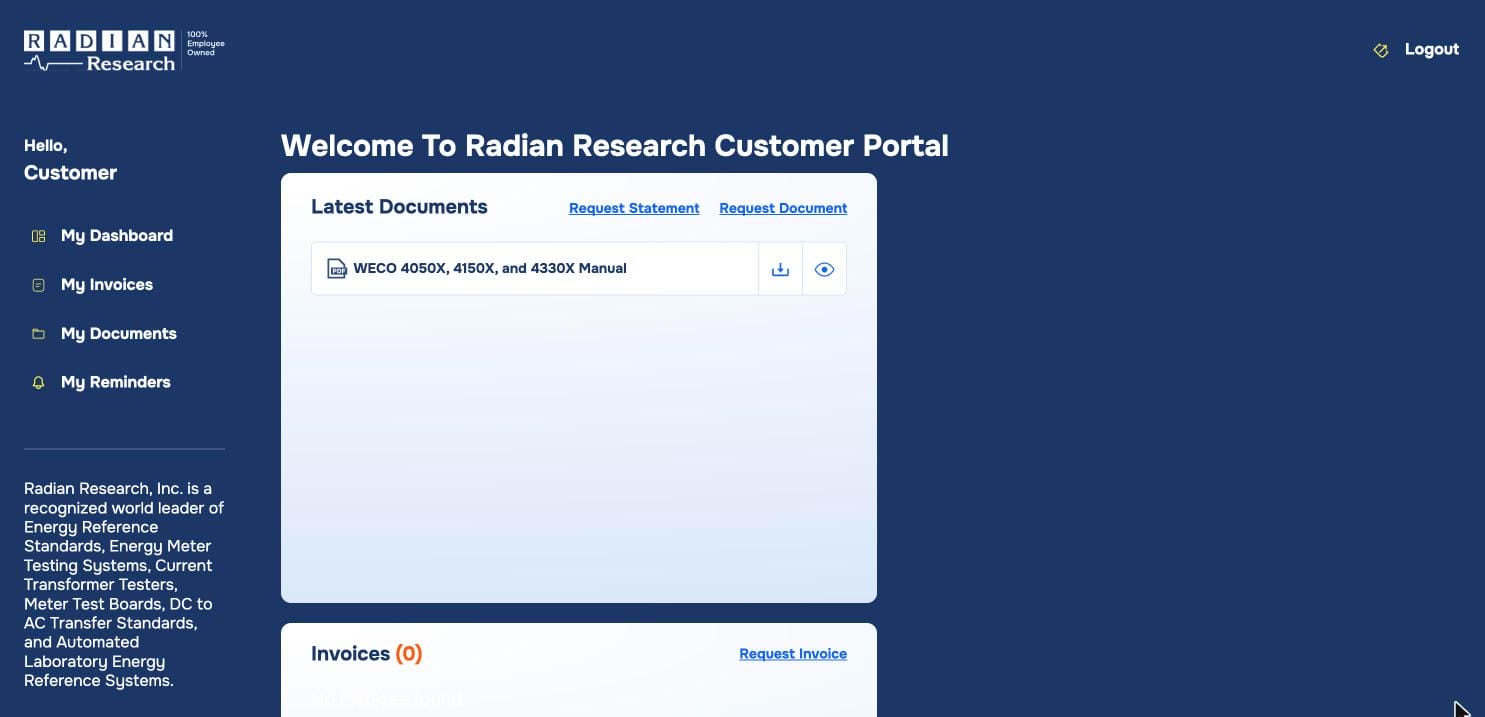
The Radian Research Customer Portal puts the paperwork for your RADIAN equipment in one place. With a free account, you can get product manuals, request copies of calibration reports and invoices, and set up reminders so a recalibration date never slips by.
Setting up an account takes a few minutes, and you can request the manuals you need while you register.
What you can do in the portal
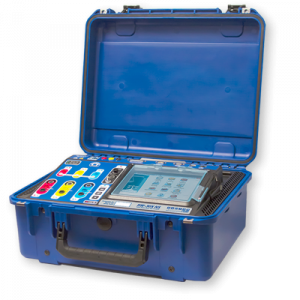
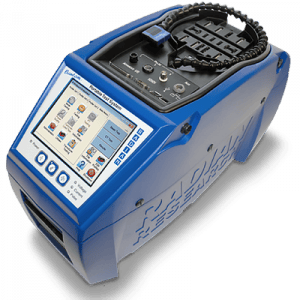
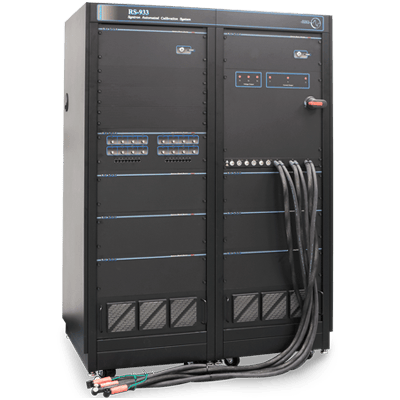
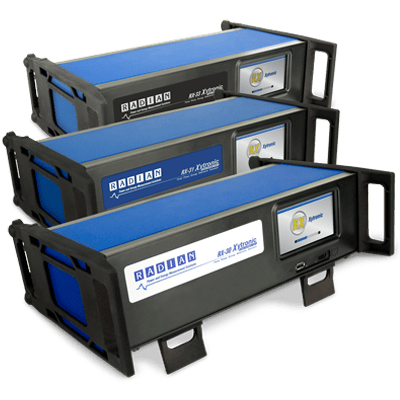
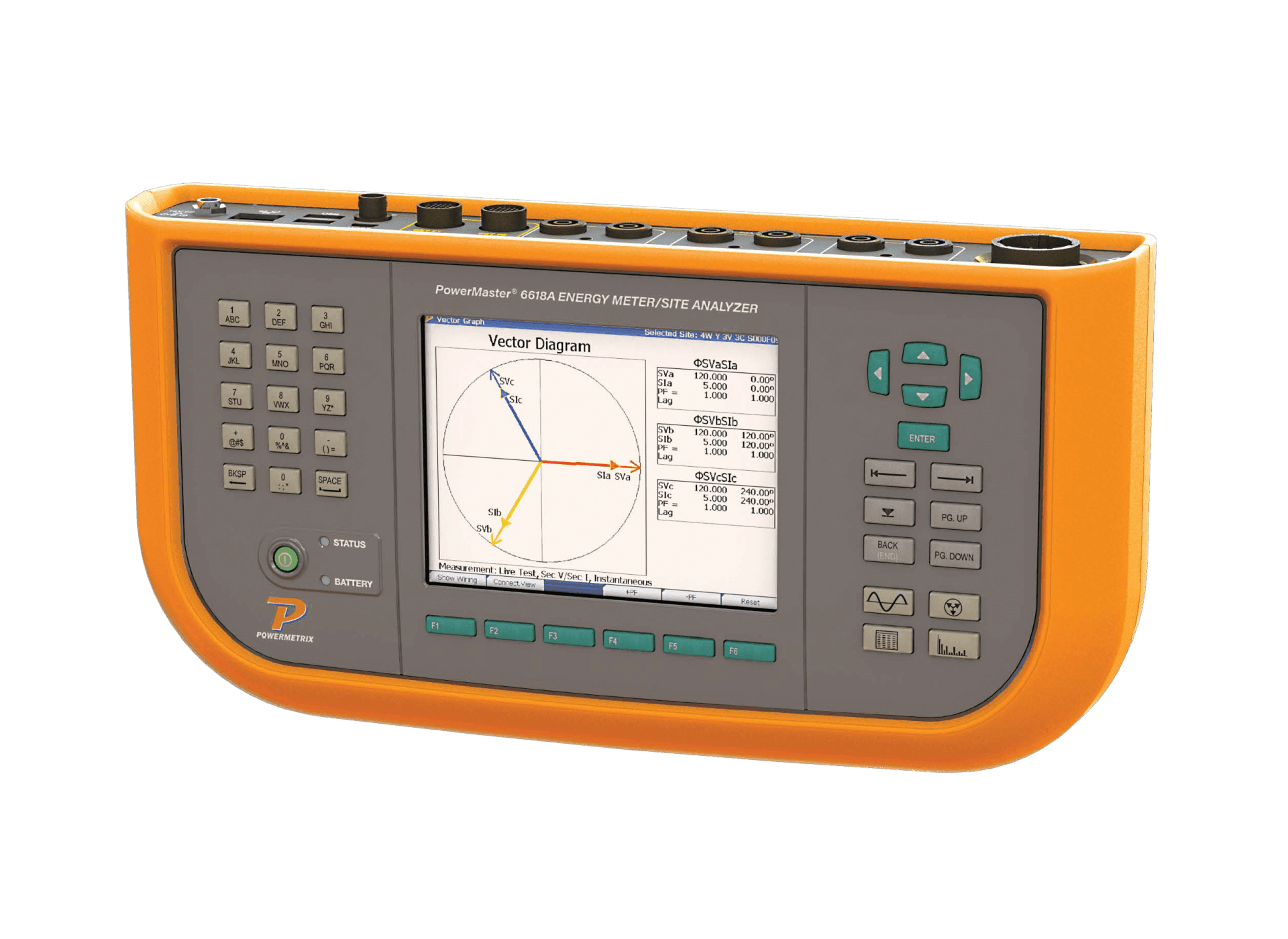
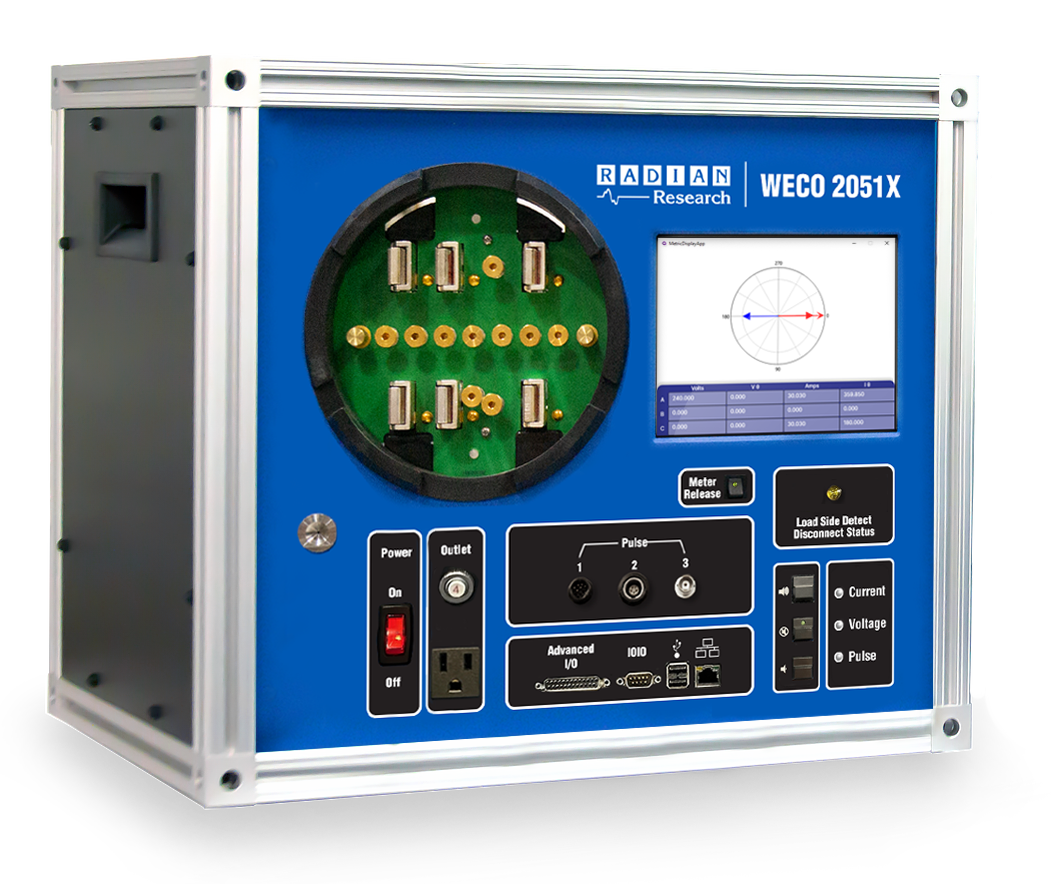
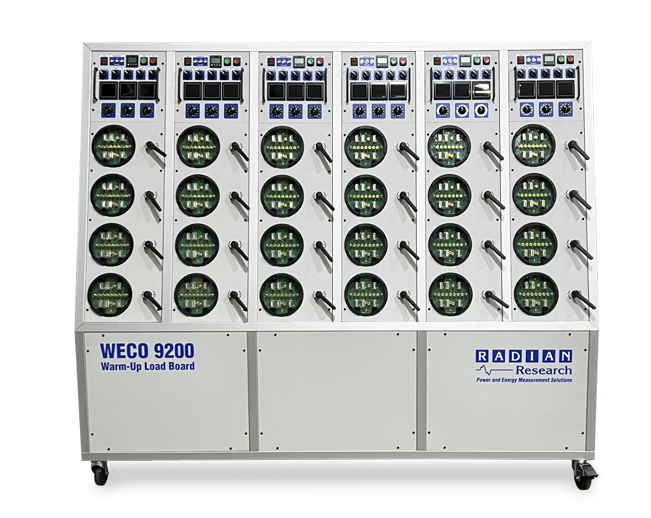
- Get product manuals. Request manuals for your RADIAN, WECO, Powermetrix, and other RADIAN equipment. We add each one to My Documents as a PDF, so it’s there whenever you need it.
- Get copies of calibration reports. Need a report for an audit, or a replacement for a lost certificate? Request a copy from your dashboard instead of searching old email.
- See and request invoices. View your invoices in My Invoices, or request a copy of an invoice or an account statement.
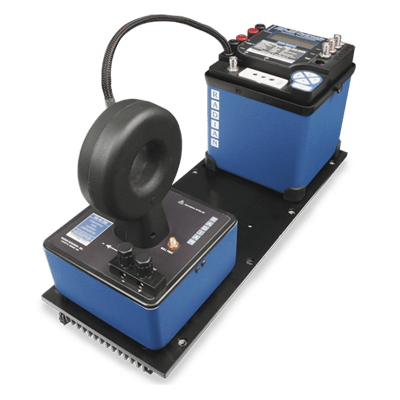
- Track recalibration dates. Set up a reminder for each standard or test system. We’ll email you on the date you choose, so you can plan the next calibration before it’s due.
Step 1: Open the registration page
Go to radianresearch.com/portal-registration, or select Customer Portal at the top of any page on our website. The page has two tabs: Login for existing accounts and Registration for new ones. Select Registration.
Step 2: Enter your contact details
Enter your name, title (optional), company name, and email address. Your email address becomes your login. Then choose a password, enter it a second time to confirm, and select Next.
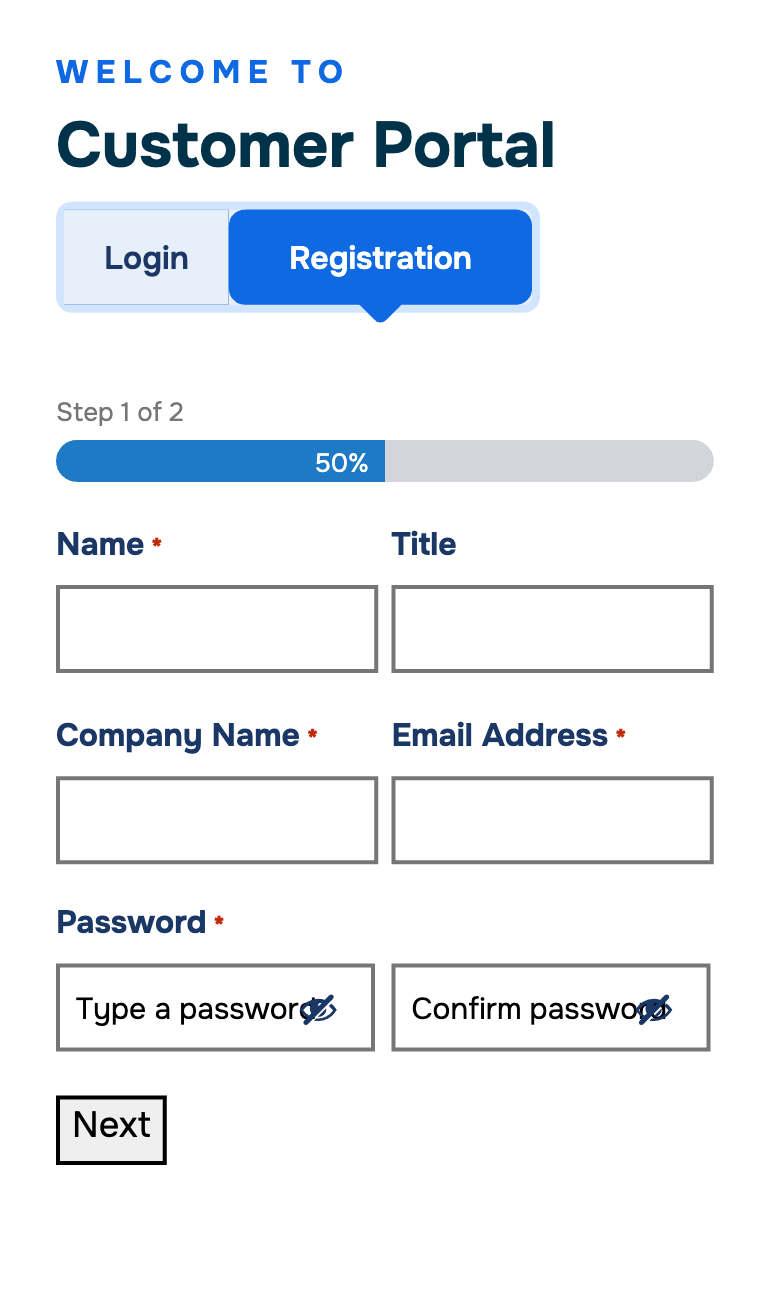
Step 3: List your equipment and the manuals you need
- List of RADIAN Equipment. Enter each model and serial number. If you’d rather, attach a spreadsheet or photo of your equipment list (up to 20 MB) in the optional file field. This helps us send you the right resources and product updates.
- Manuals you need. List the manuals you’d like on your account. We’ll match them to your equipment and add them to My Documents as PDFs.
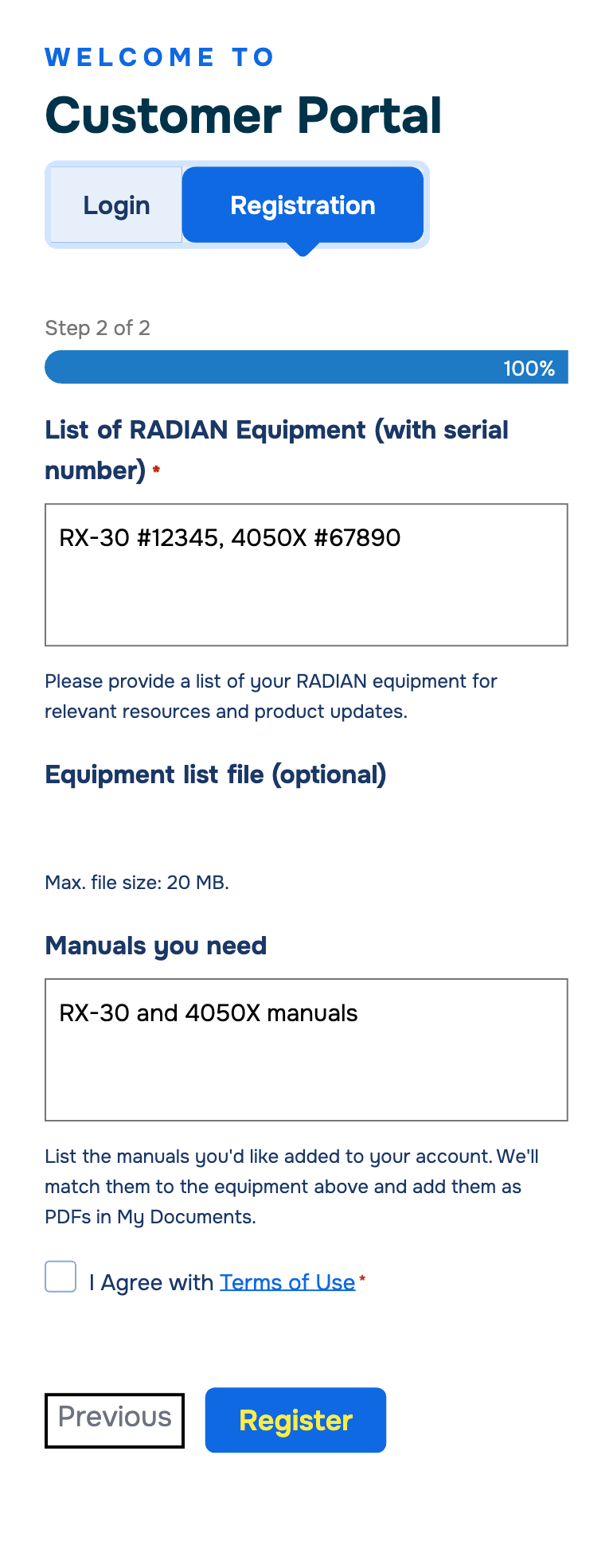
Step 4: Agree to the terms and register
Check the box to agree to the Terms of Use, then select Register. You’ll see a confirmation and receive a confirmation email, and you can log in right away.
Step 5: Find your manuals in My Documents
Once we’ve added your manuals, they appear on your dashboard under Latest Documents and on the My Documents page. Use the download icon to save a PDF, or the eye icon to view it in your browser.
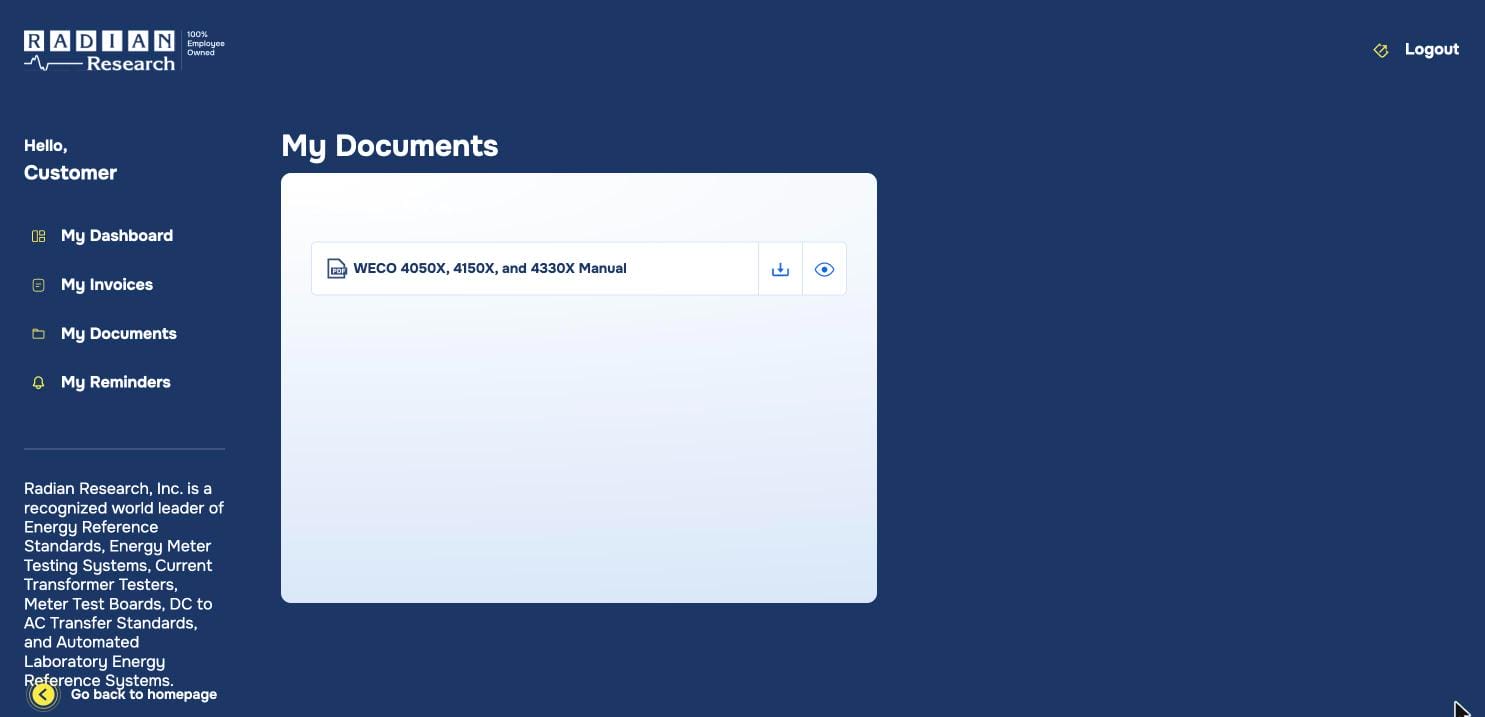
Requesting more documents later
Already have an account? Log in and use the links on your dashboard:
- Request Document for another manual or a copy of a calibration report
- Request Invoice for a copy of an invoice
- Request Statement for an account statement
Each link opens an email to our team with your name and company already started. Add the model, serial number, or invoice number so we can find what you need quickly. New manuals appear in My Documents as PDFs.
Setting up a recalibration reminder
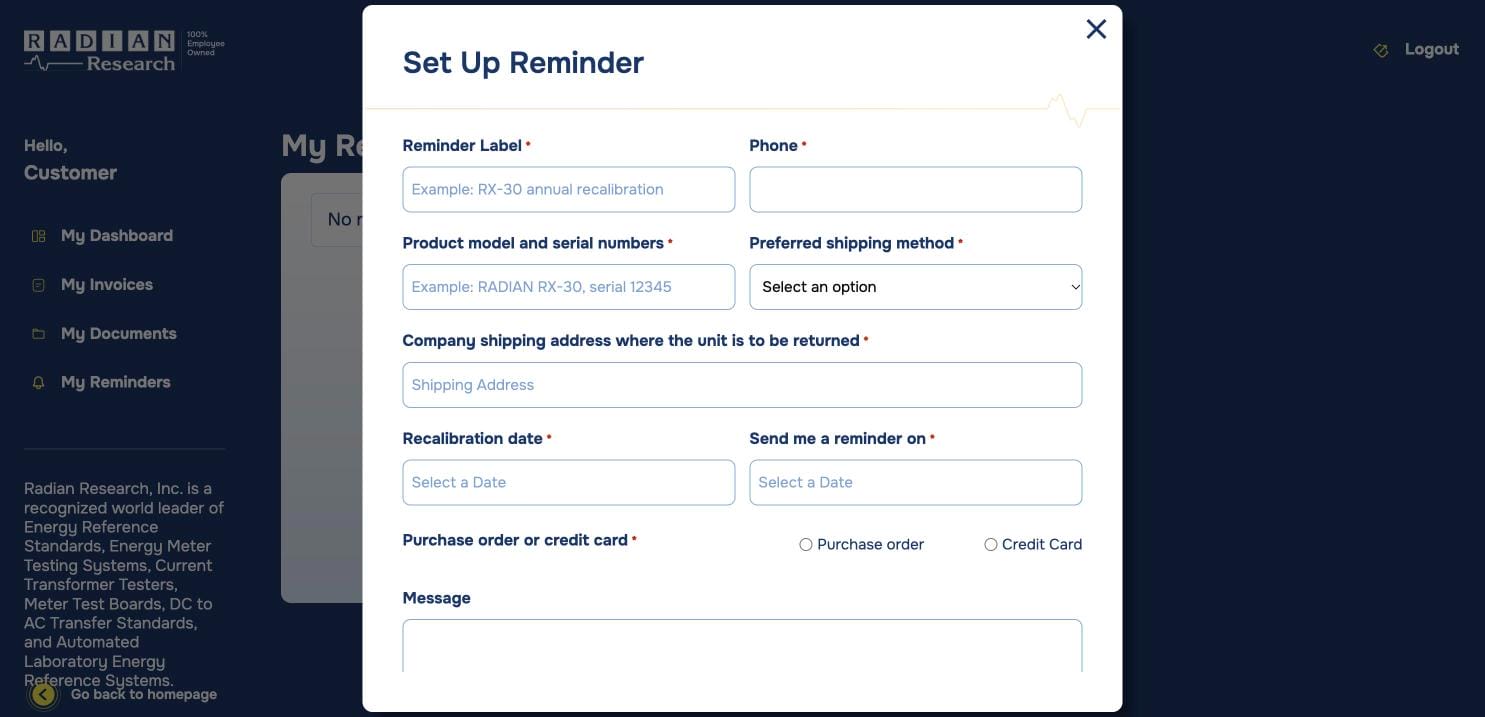
Open My Reminders and select Set Up Reminder. Enter:
- a label for the reminder, such as “RX-30 annual recalibration”
- the product model and serial numbers
- your phone number, preferred shipping method, and the address where the unit should be returned
- the recalibration due date and the date you’d like to be reminded
- whether you’ll use a purchase order or credit card
On the date you choose, you’ll get a reminder email from radian@radianresearch.com. Your reminders are listed in My Reminders, so you can see what’s coming up.
Need help?
Call us at +1 765 449 5500 or email radian@radianresearch.com. We’re glad to help you get set up.